What the Tessera del Tifoso is
The Tessera del Tifoso is a supporter card issued by a football club to its fans. It identifies you as a member of the club's supporter programme and links your name to your account with the club. Depending on the club, the card can give you discounts on merchandise, priority access to tickets and invitations to fan events. Each club runs its own programme, so you apply to the club you support, not to a central office, and the application asks for your personal details, a valid identity document and a recent photo of your face.
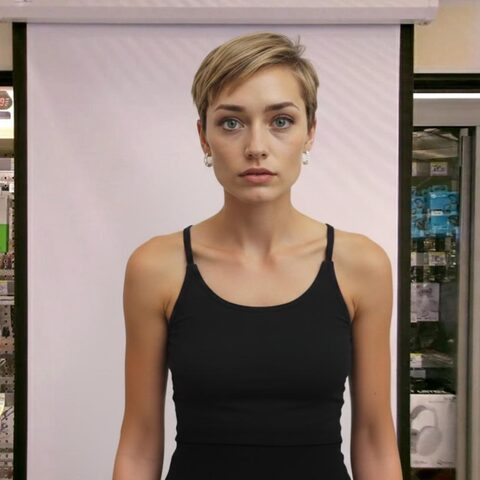
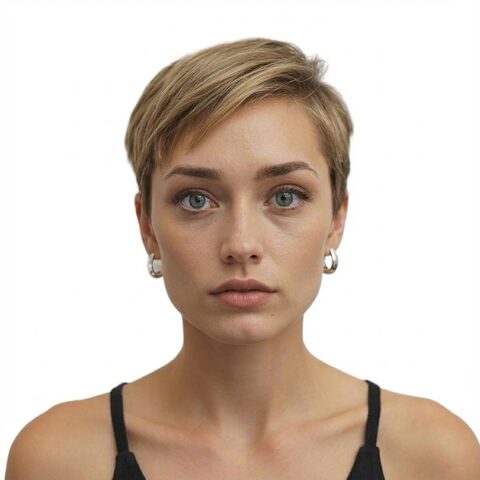
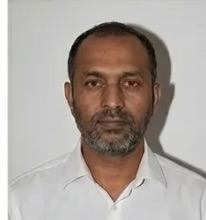
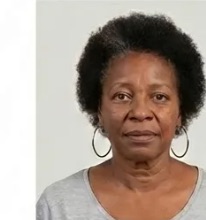
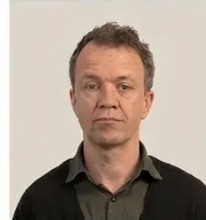
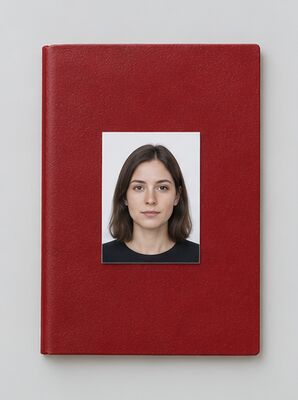
The photo is printed on the card or stored with your account, and it is how club staff can match the card to the person holding it. That is why a clear, well-lit portrait matters more than a nice picture. A holiday photo, a cropped group shot or a photo with sunglasses is the wrong kind of photo for a card that works as a form of identification.
Where you send the photo
Most clubs now take the application online. You fill in a form on the club website, upload a scan or photo of your identity document and add a portrait photo as a digital file. Some clubs still use a paper form. The SSC Napoli membership form for the Club Azzurro Card, for example, is a printable PDF form rather than an online upload. Before you prepare anything, open the application page of your club and check which path it uses: an online upload needs a digital photo file, a paper form needs a printed photo.
Our tool covers both. The digital photo you download is a 600×600 pixel file for an online form, and the same photo can be printed at 300 DPI to get a 2×2 inch print for a paper application.
Photo dimensions explained
The card photo in our template is a square of 2×2 inches, about 51×51 mm. In digital form that is 600×600 pixels, because 2 inches at 300 dots per inch gives 600 pixels on each side. These numbers describe the same photo in two ways: inches matter when you print, pixels matter when you upload the file online.
Inside the square, the head takes up about 1.29 inches from the chin to the top of the head, and the eyes sit about 1.18 inches above the bottom edge. This keeps the face large enough to recognise on a small card while leaving a little space above the hair and around the shoulders. If the head is too small, the face is hard to see once the card is printed; if it is too large, the top of the head or the chin is cut off. Our online photo maker places the head this way automatically, so you do not have to measure anything yourself.
A photo taken with a phone is usually a tall rectangle of several thousand pixels. That is far more than the card needs, and the shape is wrong. Cropping by hand in a gallery app rarely gives a straight, centred square with the head in the right place, which is why an online tool that crops to the exact template saves time.
File format and file size for the online upload
For the online path, the photo is a digital file of 600×600 pixels and no larger than 240 KB. A photo straight from a modern phone camera is often several megabytes, many times the limit, and many upload forms reject it without a clear explanation. Our tool exports the photo at 600×600 pixels and compresses it so that the file stays under 240 KB while the face remains sharp.
A few things to avoid when you prepare the file yourself:
- Do not send a screenshot of a photo. A screenshot changes the pixel count and adds the phone's status bar or rounded corners.
- Do not upload a photo of a printed photo. Glare and paper texture lower the quality, and the colours shift.
- Do not convert the file to PNG or HEIC unless the club form asks for it. JPEG is the format most upload forms accept.
- Do not compress the photo again and again. Each round of compression adds blocky artefacts around the eyes and hair.
Background and lighting
The photo needs a plain white background with no shadows, patterns or objects behind you. At home, a plain wall is a good start, but a wall that looks white to the eye often turns grey or yellow in a phone photo, especially in evening light. You do not need a perfect wall: the AI removes the original background and replaces it with a clean white one, keeping the edges of the hair natural.
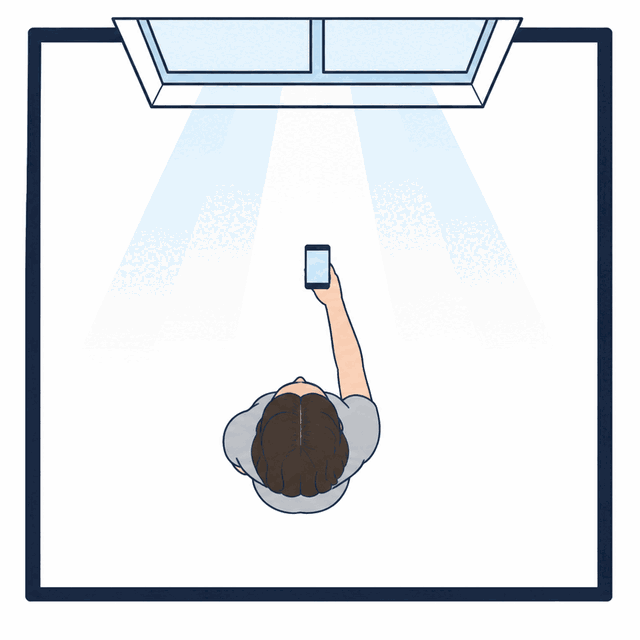
Light on the face matters more than the wall. Stand facing a window during the day so that soft light falls evenly on both sides of your face. Avoid a lamp directly above you, which casts shadows under the eyes, and avoid direct sunlight, which makes you squint and leaves hard shadows on the photo. Turn off the camera flash: it flattens the face and often adds red eyes or a bright spot on the forehead.
Face, expression and pose
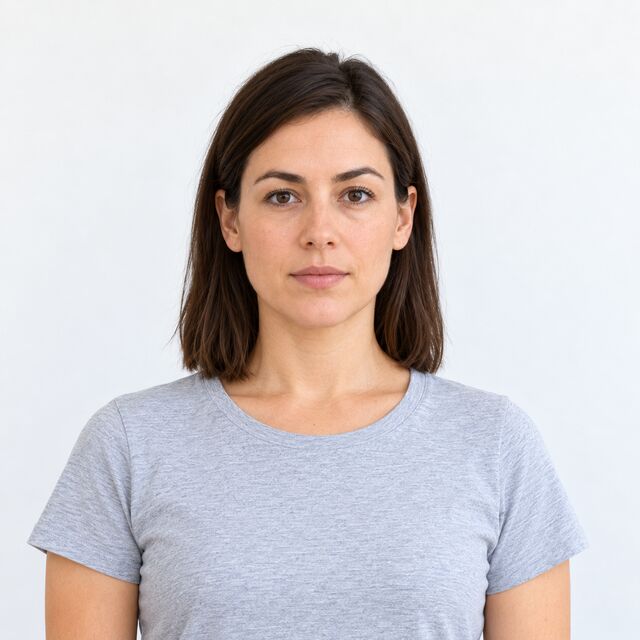
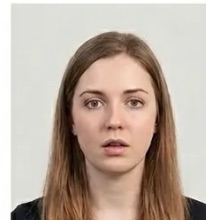
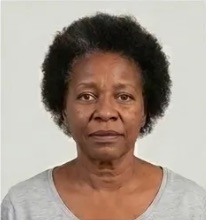
Look straight into the camera with a neutral expression and your mouth closed. Keep your head level, not tilted to one side or up or down, and make sure both eyes are open and clearly visible. The whole face should be in the photo, from the top of the hair to the chin, with both ears and shoulders roughly level.
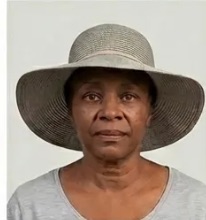
Take off sunglasses and tinted glasses. Regular glasses are best removed too, because the lenses easily reflect light and hide the eyes. Pull hair back from the eyes and keep the forehead and eyebrows visible. A team cap, a scarf pulled up over the chin or a headband can hide part of the face, so leave the supporter gear for match day and wear plain clothes in a colour that stands apart from the white background.
How to take the photo with a phone
- Use the main rear camera if someone can help you; it gives a sharper photo than the front camera.
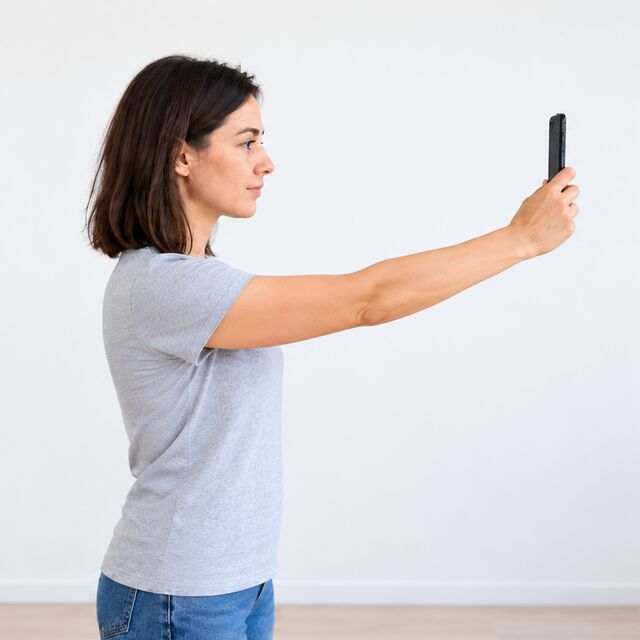
- If you take a selfie, hold the phone at arm's length and at eye level, or lean it against a stack of books and use the timer.
- When someone else takes the photo, they should stand a couple of steps away rather than close up, so the face is not distorted.
- Leave space around the head and shoulders. The online tool crops the photo to the template, but it cannot add a chin or the top of the hair that is outside the frame.
- Turn off portrait mode, beauty filters and any effects. The photo should look like you on a normal day.
- Take several photos and pick the sharpest one with even light and a neutral face.
Printing the photo for a paper form
If your club uses a paper form, print the photo at 300 DPI so the 2×2 inch print stays sharp. You can download the digital photo and print it on glossy or matte photo paper at home, or send the file to a photo print shop. When you print at home, set the printer to 100% scale; a "fit to page" setting shrinks or stretches the photo. Cut along the edges carefully so the print is square and the head stays centred, then attach the photo where the form shows the photo box.
Photo checklist before you apply
- Square photo, 2×2 inches when printed or 600×600 pixels as a digital file.
- File size no larger than 240 KB for an online upload.
- Plain white background, no shadows or objects.
- Neutral expression, mouth closed, both eyes open.
- Head straight and centred, the whole face visible.
- No sunglasses, caps or scarves covering the face.
- Sharp, recent colour photo with no filters or retouching that changes your features.
After you submit the application
Once the club receives your application, it usually sends a confirmation email. The card then arrives by mail or as a digital card in your club account; processing time depends on the club. Some cards must be activated before first use, for example by logging in to your account on the club website and entering the card details. Keep the digital photo file: if the card needs renewal or you need a replacement after a loss or theft, you may be asked for the photo again, and having the file ready saves a step.
If the club rejects the photo, the message often names the reason, such as a dark background or a face that is too small. You can upload a new photo to our online tool, fix the issue and download a corrected photo in a minute.
What to have ready for the application
The photo is only one part of the application. Before you open the club form, gather everything in one place so you can finish it in one sitting:
- Personal details: full name, date of birth and contact details, written exactly as they appear on your identity document.
- A valid government-issued ID: a passport or a national identity card. For an online form you usually upload a scan or a clear picture of it.
- Proof of your link to the club: some programmes ask for a membership number or receipts of past ticket purchases.
- An email address: the confirmation and later messages about the card arrive by email.
- A payment method: some clubs charge a fee for the card, usually paid online by credit or debit card or PayPal.
- Your portrait photo: a digital file for an online form, or a print for a paper one.
Check that the name on the form matches the name on your ID letter for letter, including any second name. A mismatch between the form, the ID and the account details is a common reason for delays that has nothing to do with the photo.
Step by step: applying for the Tessera del Tifoso
The exact steps differ from club to club, but most supporter programmes follow the same order:
- Choose your club. The card is issued by the team you support, so you apply for that team's programme.
- Gather your documents. Have your ID, any membership number or ticket receipts and your photo ready.
- Open the official club website. Most clubs have a section for fans or members where the programme and the form are described, for example the fan pages of AC Milan, Juventus and AS Roma.
- Complete the form. Enter your details, upload the ID scan and the photo, and read every field again before you send it.
- Pay the fee if there is one. Payment is usually made online during the same session.
- Wait for the confirmation. A confirmation email follows; the card arrives by mail or as a digital card.
- Activate the card. Follow the instructions that come with it, often by logging in to your club account and entering the card details.
How our AI checks your photo
When you upload a picture, the tool first finds your face and the position of the eyes, chin and top of the head. It then crops and straightens the image so the head sits at the height and position of the template, removes the original background and fills it with plain white. After that it runs a series of checks and shows you the result before you download anything.
The check looks at the things that most often get a portrait rejected: whether both eyes are open and visible, whether the face looks straight at the camera, whether the expression is neutral, whether there are strong shadows on the face, whether the picture is sharp enough and whether anything covers part of the face. If something fails, you see which point it is, so you can take a new picture with that one thing fixed instead of guessing what went wrong.
The result is a preview you can look at closely. Zoom in on the eyes and the edges of the hair: they should be crisp, with no halo or leftover patches of the old background. If you are not happy with the result, upload another picture; there is no limit on how many times you try.
Clothes, hair and make-up
Wear a top in a solid, medium or dark colour. A white or very light shirt blends into the white background, and the outline of your shoulders disappears. Busy patterns, large logos and shiny fabrics draw attention away from the face. A plain crew neck or collared shirt works well for most people.
Comb your hair so it does not fall over the eyes or the eyebrows. Long hair can go behind the shoulders or in front, as long as the face stays fully visible. Everyday make-up is fine; avoid heavy contouring, glitter or face paint in team colours, which change how your face looks. Keep jewellery small, since large earrings or chains catch the light and distract from the face.
Taking a picture of a child
If you apply for a younger supporter, check the club form first for any extra rules that apply to minors. The picture itself follows the same guidance as for an adult, and it is usually easier with two people. Sit the child on a chair facing a window, hold the phone at the child's eye level and ask them to look at a point just above the lens. Take a burst of pictures and choose the one where the eyes are open and the mouth is closed. Our tool handles the crop and the white background, so you only need to focus on a calm face and good light.
Editing: what is fine and what is not
The card photo has to look like you. Light corrections are fine: our tool evens out brightness and contrast and replaces the background. What you should not do is change your features. Do not smooth the skin until it looks like plastic, do not remove moles or scars, do not reshape the face or the eyes, and do not add beauty or colour filters. A heavily edited portrait may still pass an automatic check, but club staff compare the card with the person in front of them, and a picture that does not look like you defeats the purpose of the card.
If the original picture has a problem that you cannot fix by taking it again, for example uneven light in a room you cannot change, the optional professional retouch corrects lighting and shadows while keeping your face unchanged.
Scanning your ID for the online form
Many online forms also ask for a copy of your identity document. Place the ID on a dark, plain surface, switch off the flash to avoid glare on the laminate and make sure all four corners are in the frame. Every line of text should be readable when you zoom in. If the form accepts a PDF or JPEG file, keep it small enough for the upload; a scan app on your phone usually produces a clean, flat image that is easier to read than an ordinary snapshot.
Renewal, loss and keeping the card
The card may need renewal every year, so watch for the expiry date and for messages from your club. If the card is lost or stolen, report it to the club's customer service right away; they can help you get a replacement card. Club members often receive invitations to supporter events and meetings with players through the club's official channels, so keep your contact details in your account up to date.
Store your digital photo file in a folder you can find later, together with a copy of the confirmation email. When it is time to renew or replace the card, you can reuse the file if it is still recent and still looks like you, or make a new one online in a minute.
How to check the photo size yourself
If you already have a portrait and want to know whether it fits, check it before you upload. On a computer, open the file's properties or info panel: the dimensions should read 600×600 pixels and the file size should be no more than 240 KB. On a phone, swipe up on the picture in the gallery or open its details to see the same numbers. A square shape with the right pixel count is not enough on its own, though; the head also has to fill the frame at the right height, which is the part people most often get wrong when they crop by hand.
For a print, measure it with a ruler. Each side should be 2 inches, about 51 mm, and the head from chin to crown about 1.29 inches. If the print comes out smaller or larger, the printer settings scaled it; print again at 100% so the photo size stays exact.
Why a recent picture matters
You may use the card for a long time, and the face on it should still look like you. Use a picture taken for this application rather than an old portrait from another document. If you have grown or shaved a beard, changed your hair colour or started wearing glasses since your last photo, take a new one. Club staff compare the card with the person in front of them, and a face that has changed a lot makes that check harder.
Taking the picture indoors in the evening
Daylight from a window gives the most even light, but you can still get a good result in the evening. Place two lamps at face height, one on each side of you and a little in front, so neither side of the face falls into shadow. Switch off the ceiling light: a single bulb straight above the head leaves dark shadows under the eyes, the nose and the chin. Warm bulbs make the skin look orange in the picture; if your lamps have a daylight or cool setting, use it. The background does not need to be perfect, because the AI replaces it, but a light wall behind you helps the camera expose the face correctly.
Phone camera settings that help
- Clean the lens. A fingerprint on the lens makes the whole picture soft and hazy.
- Tap to focus on the face. This sets focus and exposure on your eyes instead of on the wall.
- Use a slight zoom. If someone takes the picture for you, a 2× zoom from a little further away avoids the large-nose effect of a wide lens up close.
- Keep HDR on automatic. It helps balance a bright window and a darker room, but turn off any beauty or portrait effects.
- Hold still. Rest your elbows on a table or use the timer so the picture is not blurred by camera shake.
Making photos for the whole family
If several family members apply for a loyalty card with the same club, make a separate portrait for each person. Take the pictures in the same spot by the window one after another, then upload them one by one to the tool. Name each downloaded file with the person's name, for example "surname-name-card.jpg", so you do not mix them up when you fill in several forms. Each application needs its own photo and its own ID, even when the forms are sent on the same day.
When the upload does not go through
Sometimes the club form refuses the file or the page hangs after you press the upload button. Most of these problems have simple causes:
- The file is too large. Check that it is under 240 KB. A file you edited and saved again in another app may have grown past the limit.
- The format is not accepted. iPhones save pictures as HEIC by default. Download the file from our tool instead of picking the original from the gallery.
- The dimensions are wrong. If the form checks the shape, a rectangle is rejected; use the square 600×600 pixel file.
- The connection dropped. On mobile data, a long form can time out. Switch to Wi-Fi and try again, or fill in the form on a computer.
- The browser blocks the file picker. Try another browser, or save the file to your device first and then select it from the downloads folder.
If the form accepts the file but the club later asks for a different photo, read the message carefully. It usually names the issue, for example a shadow, glasses or a face that is too small, and you can fix that one point with a new picture.
Glasses and contact lenses
Glasses are the most common reason a good portrait gets flagged. Even clear lenses reflect a window or a lamp, and thick frames can cover the eyebrows or the corners of the eyes. The simplest fix is to take them off for the picture. If you cannot see the phone screen without them, ask someone else to take the picture, or use the timer and look straight into the lens. Clear contact lenses are not visible and cause no problem; coloured or patterned lenses change the look of your eyes and are best left out.
Other documents with a photo
The supporter card application asks for a valid identity document, and that document has its own photo rules. If you also need a new ID, see our ID card photo page or the passport photo page; each one crops the photo to the size that document asks for.